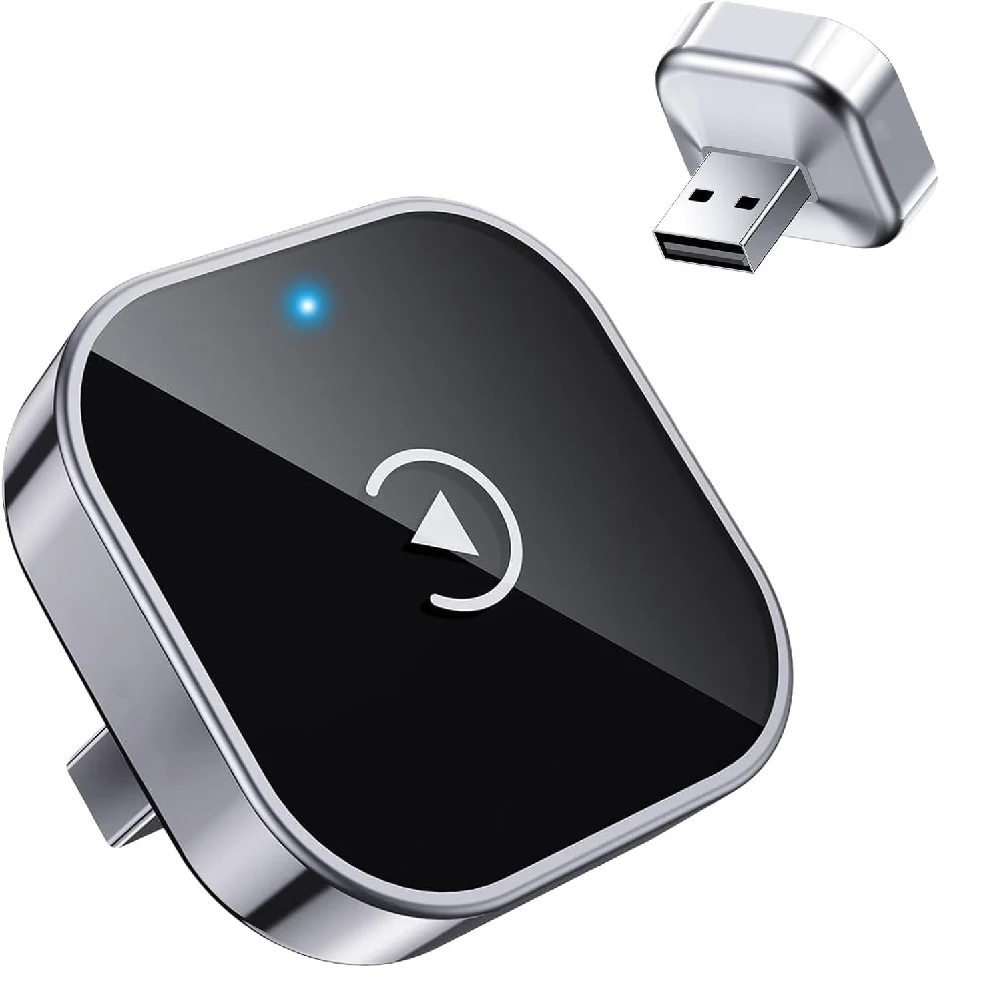
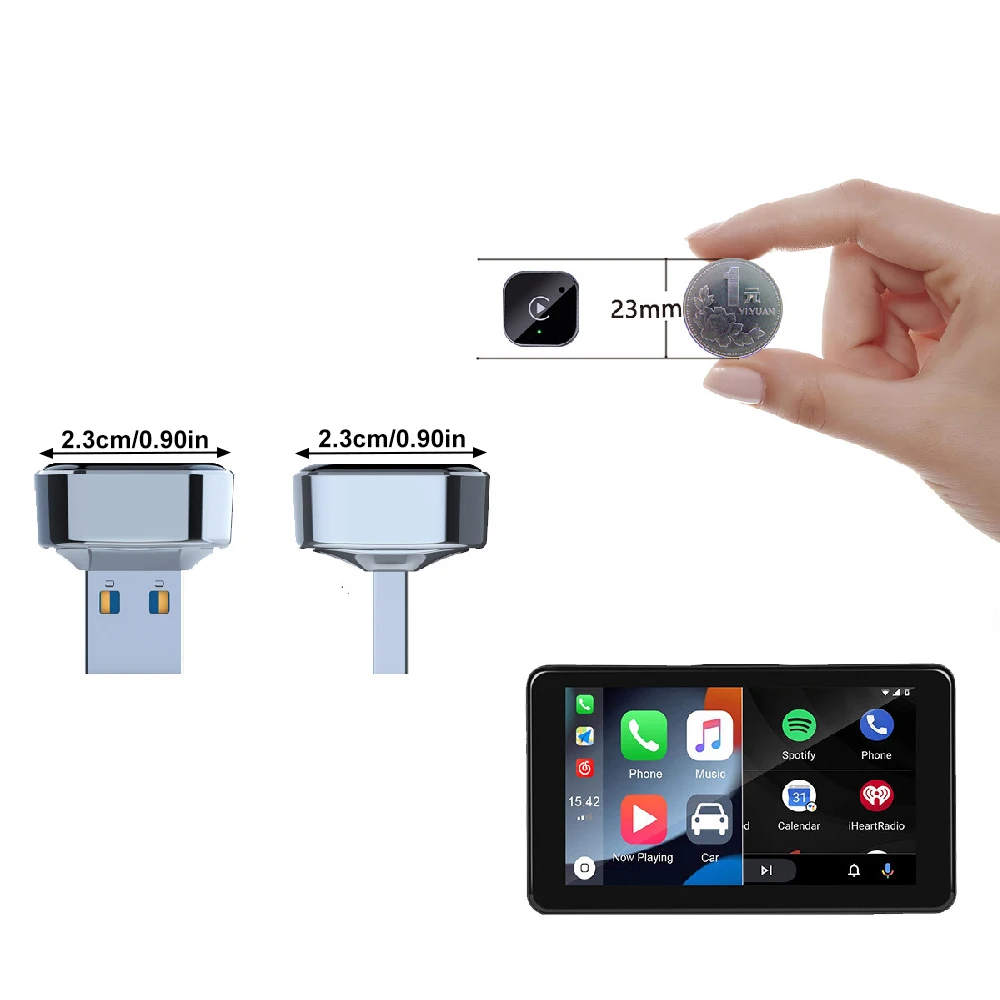
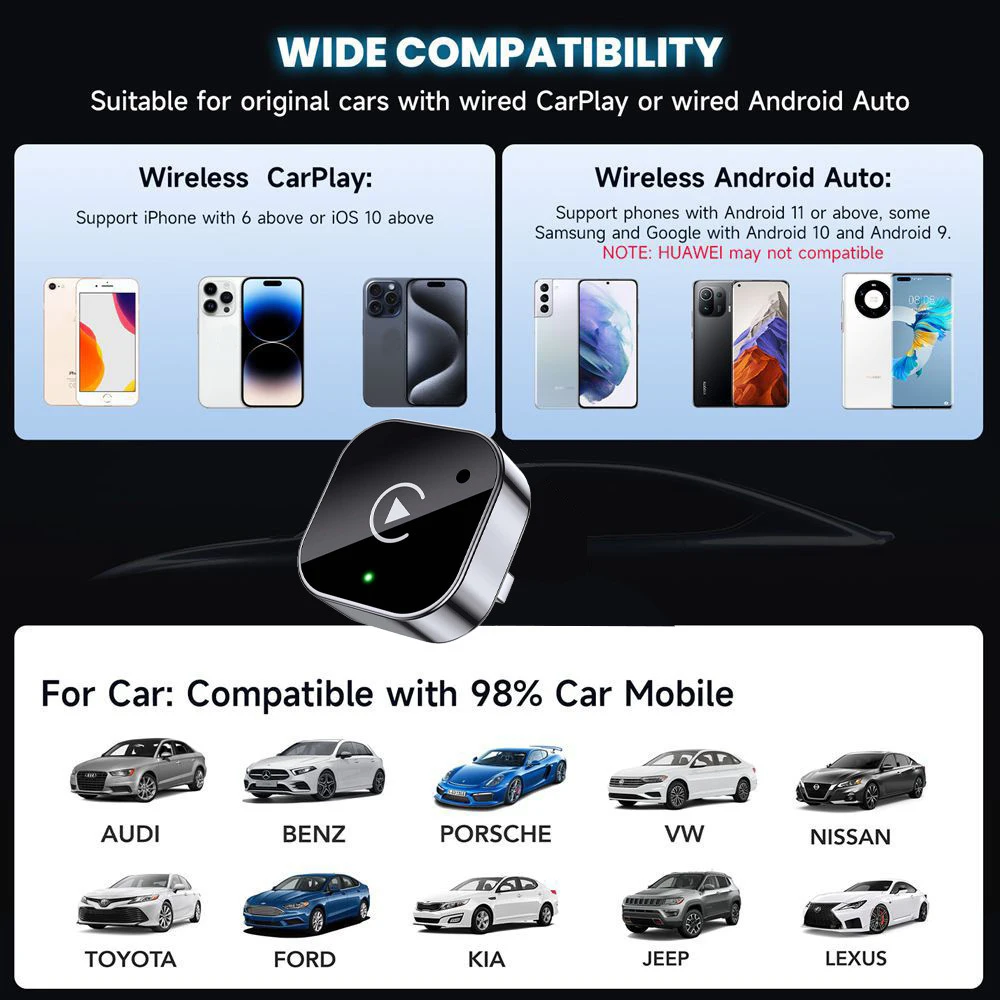
1Set Wireless CarPlay Adapter, Broader Compatibility for iPhone & Android, Compact Stable Connection for CarPlay & Android Auto
Black-1Set
Prix promotionnel
$47.99
Prix régulier $66.99
Passer aux informations sur le produit


1Set Wireless CarPlay Adapter, Broader Compatibility for iPhone & Android, Compact Stable Connection for CarPlay & Android Auto
Prix promotionnel
$47.99
Prix régulier $66.99
Expédition calculée lors du paiement.
SPECIFICATIONS
Brand Name: NONE
Choice: yes
High-concerned chemical: None
Origin: Mainland China
Features
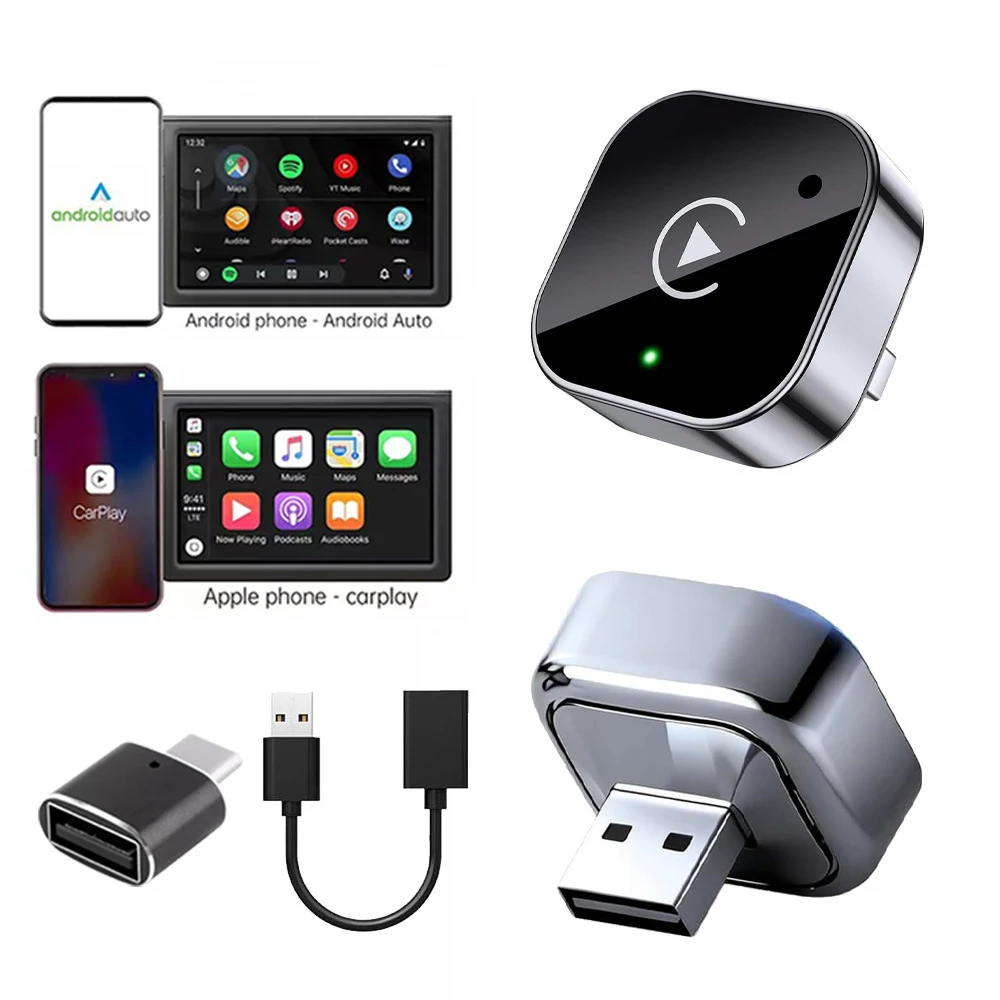
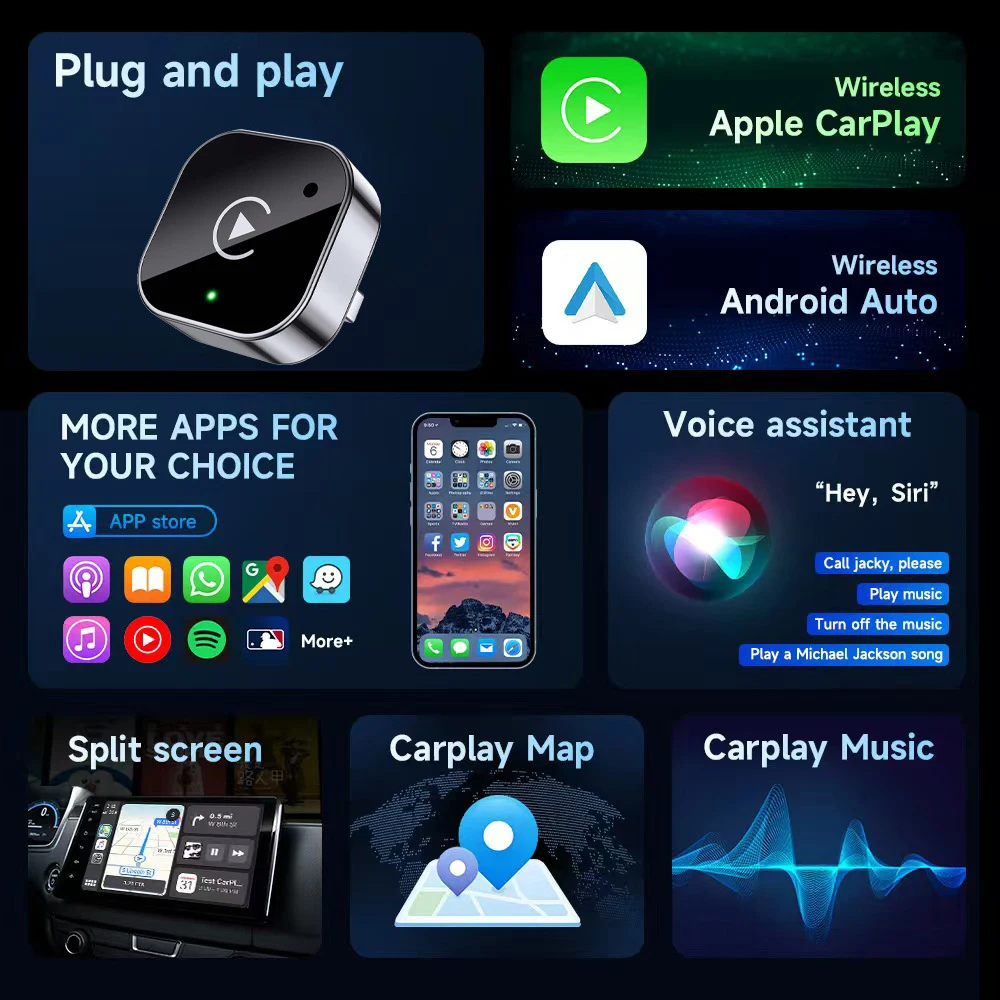
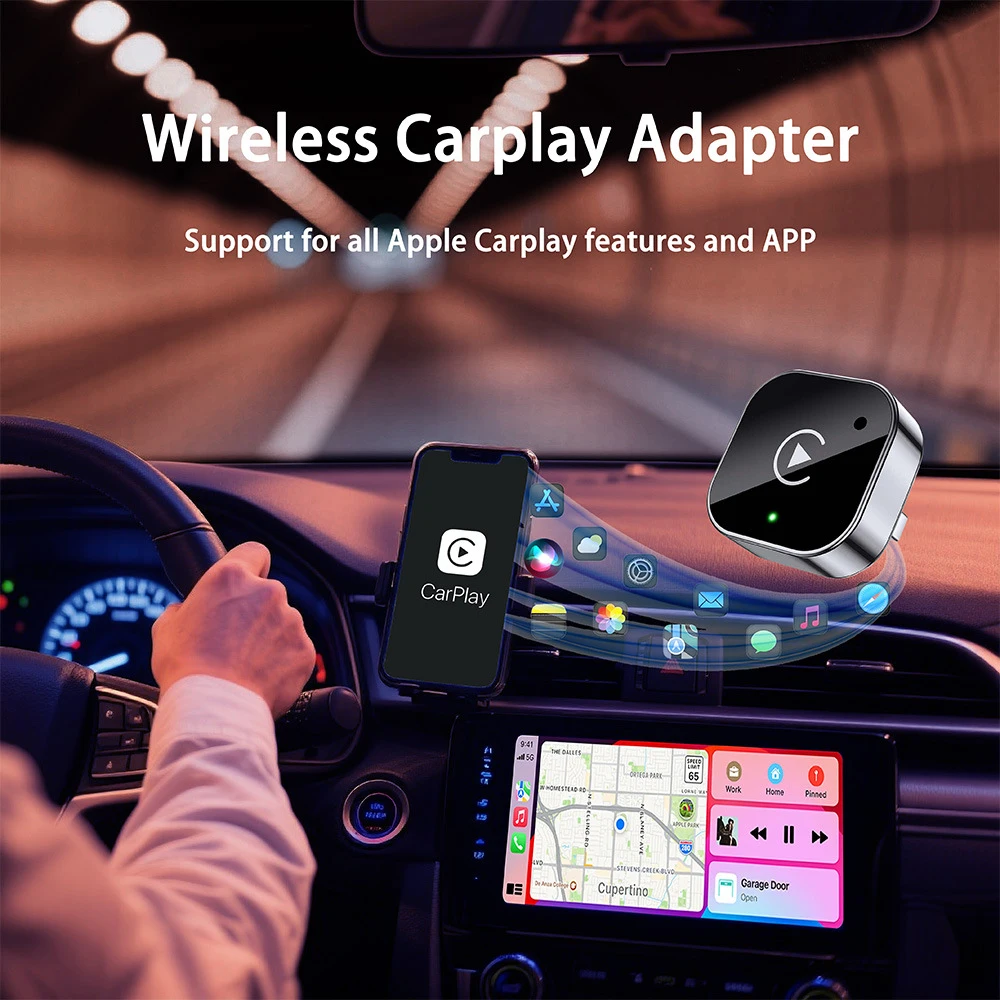
- Converts factory wired CarPlay / Android Auto to fully wireless CarPlay / Android Auto.
Package Contents:
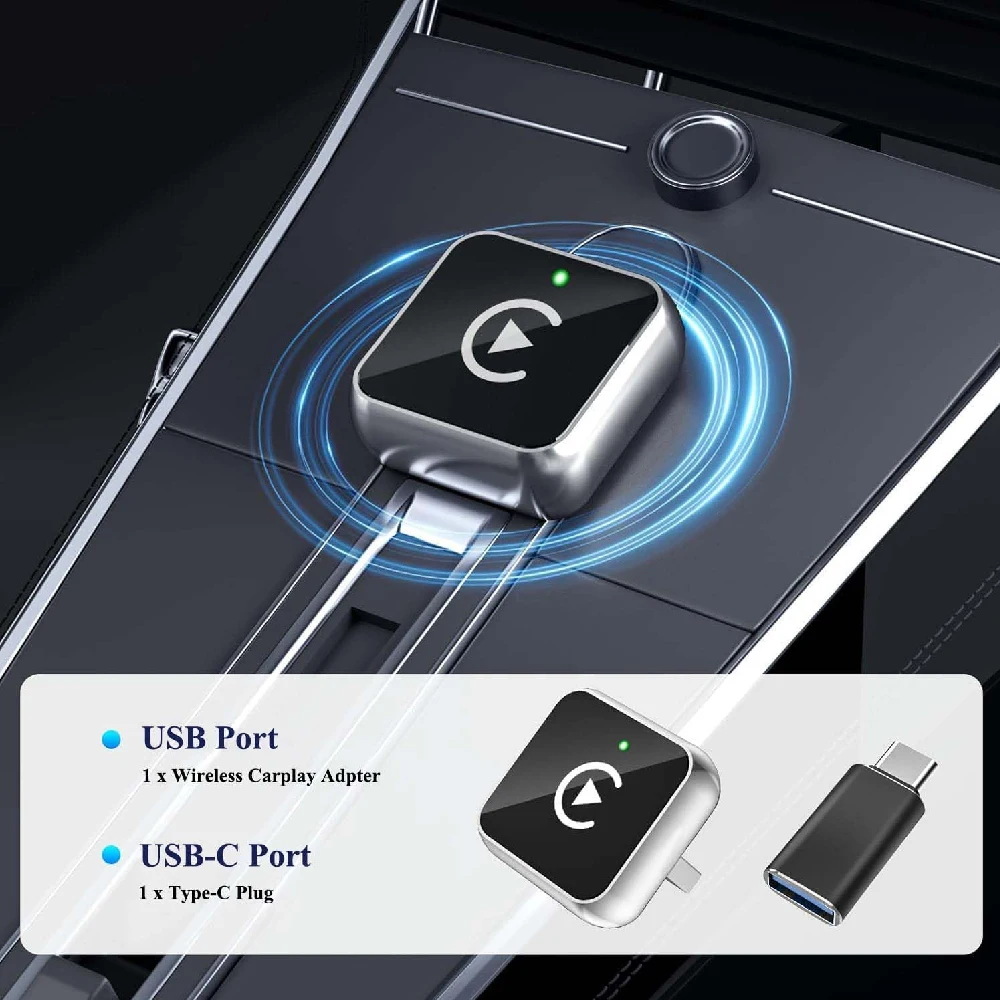
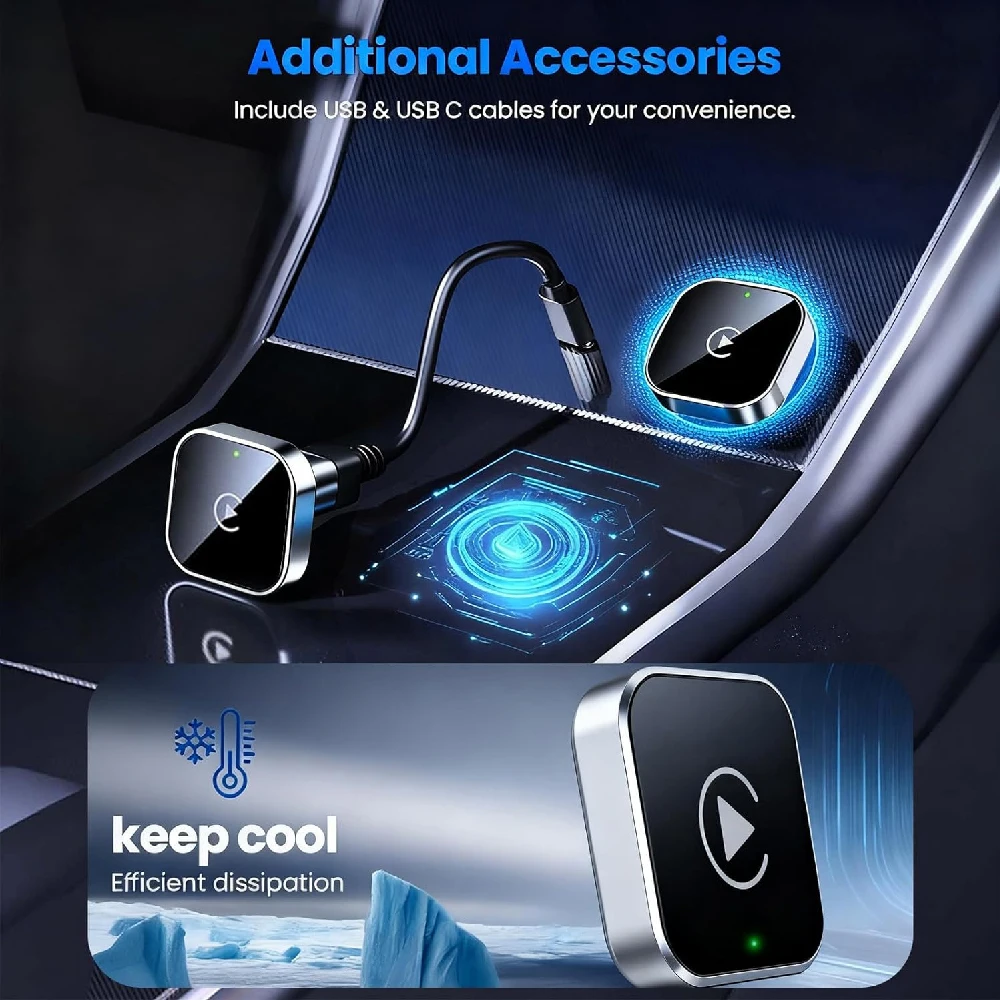
1* Wireless adapter
1* USB C to USB A adapter
1* User manual
Input Voltage: 5V
Required Equipment & System Specifications:
- Mobile phone with Bluetooth and Wi Fi capability
- Connection to the adapter is completed via Bluetooth pairing
Operating System Requirements
- iPhone: iOS 12 or newer
- Android phone: Android 11 or newer
- Vehicle Infotainment System
- Factory system with native wired CarPlay or Android Auto support
Pre Setup Check
- Verify your vehicle’s built in wired CarPlay / Android Auto function first:
- Plug your phone into the car’s USB port using the original factory charging cable. If wired CarPlay or Android Auto launches normally, this wireless adapter is compatible with your vehicle to upgrade to a wireless connection.
- Note: If you cannot confirm whether your vehicle supports wired CarPlay or Android Auto, consult your vehicle dealer for assistance.
Step by Step Setup Instructions:
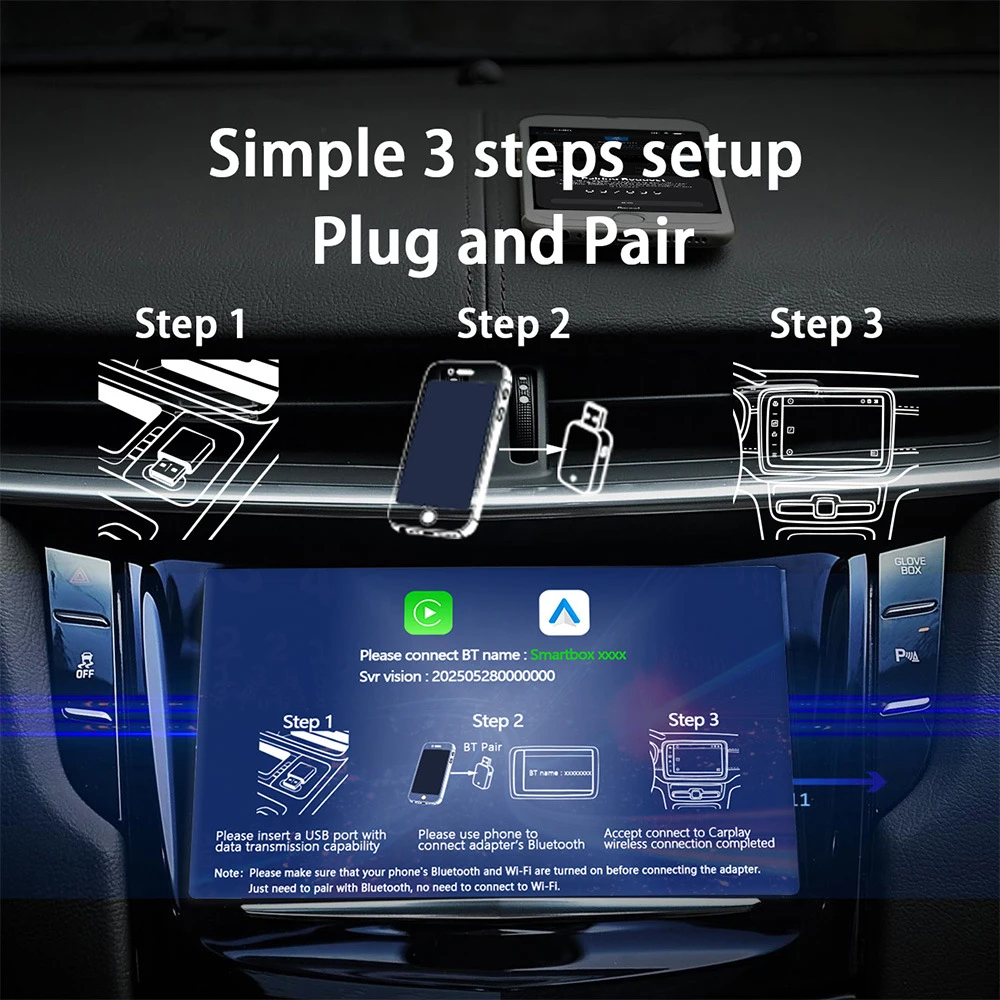
1. Start your vehicle and wait for the infotainment system to fully boot up.
2. Some car models require the engine to be fully running to finish system initialization.
3. Locate your vehicle’s data USB port
4. Your car may be equipped with multiple USB ports; some ports only supply charging power without data transfer. Ensure you plug the adapter into the port that links to the car’s infotainment system.
5. Connect the adapter to the vehicle
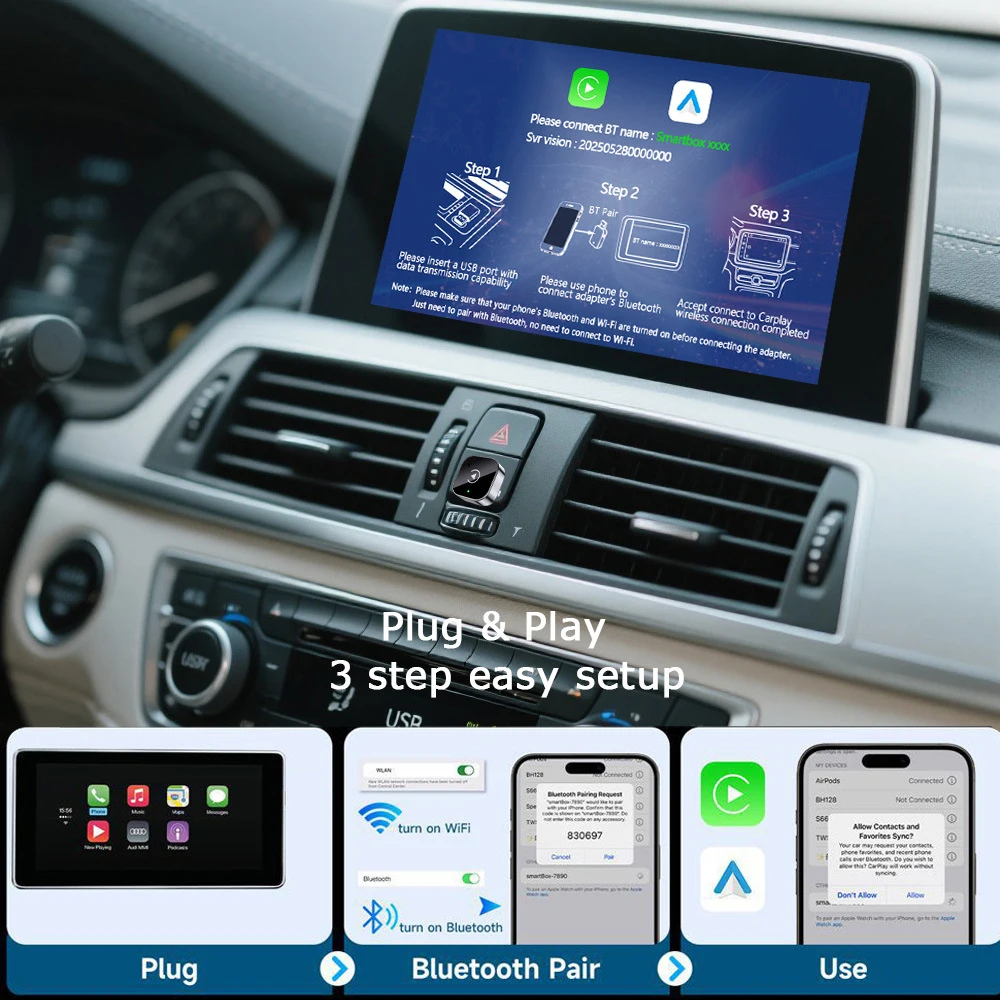
6. Insert the USB A end of the converter into the wireless adapter, then plug the assembly into your car’s infotainment data USB port.
7. Prepare your phone for Bluetooth pairing
8. Open your mobile device’s Bluetooth settings and scan for nearby available devices.
9. If the guide screen does not pop up on your car display, skip this prompt and continue with the pairing steps below.
10. Recommendation for Android users: Complete Bluetooth pairing within 30 seconds. If pairing takes longer than 30 seconds, unplug the adapter, reinsert it, and restart the pairing process.
11. Complete device pairing
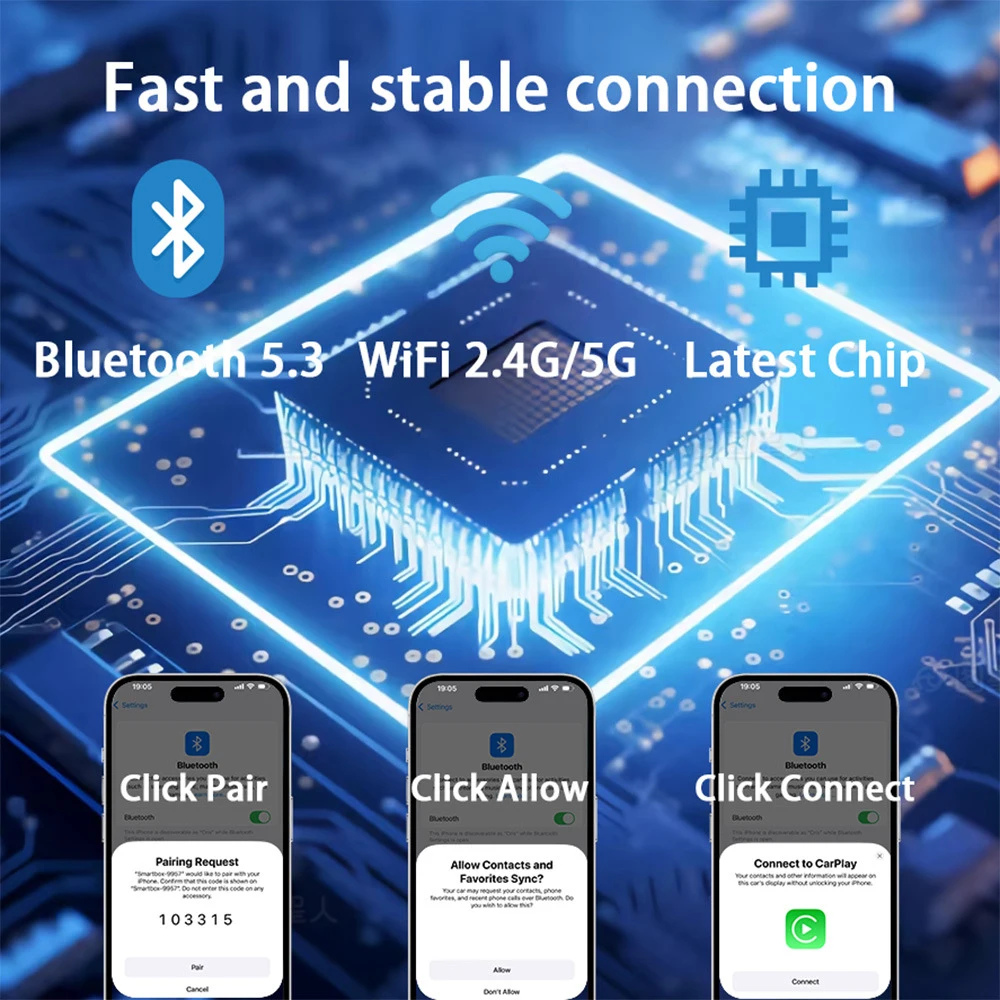
12. Locate the device named Smartbox XXXX in your Bluetooth device list and tap it to initiate pairing.
13. Accept the pairing request on your mobile device
14. Once the adapter and phone connect, a pairing approval prompt will appear on your phone screen; confirm the pairing request.
Operation Instructions:
Connection Mechanism
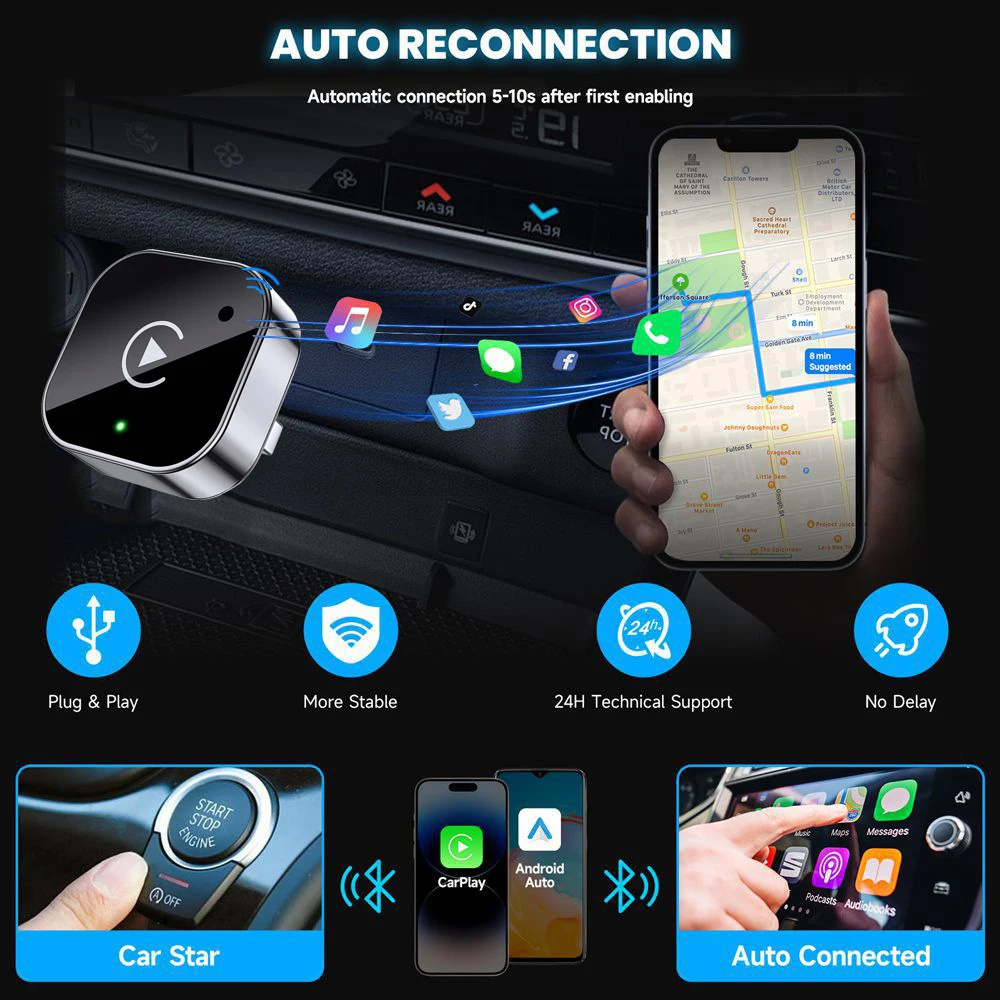
- After pairing succeeds, the adapter will use both Bluetooth and Wi Fi to establish a stable, secure dual connection between your smartphone, the adapter and your car’s infotainment system.
System Initialization
- Leave the system idle for several minutes and avoid pressing extra buttons to let the device finish
initialization.
initialization.
Enter CarPlay / Android Auto Mode
- Once initialization completes, tap the corresponding icon on your car’s touchscreen to launch wireless CarPlay or Android Auto.
Function Control
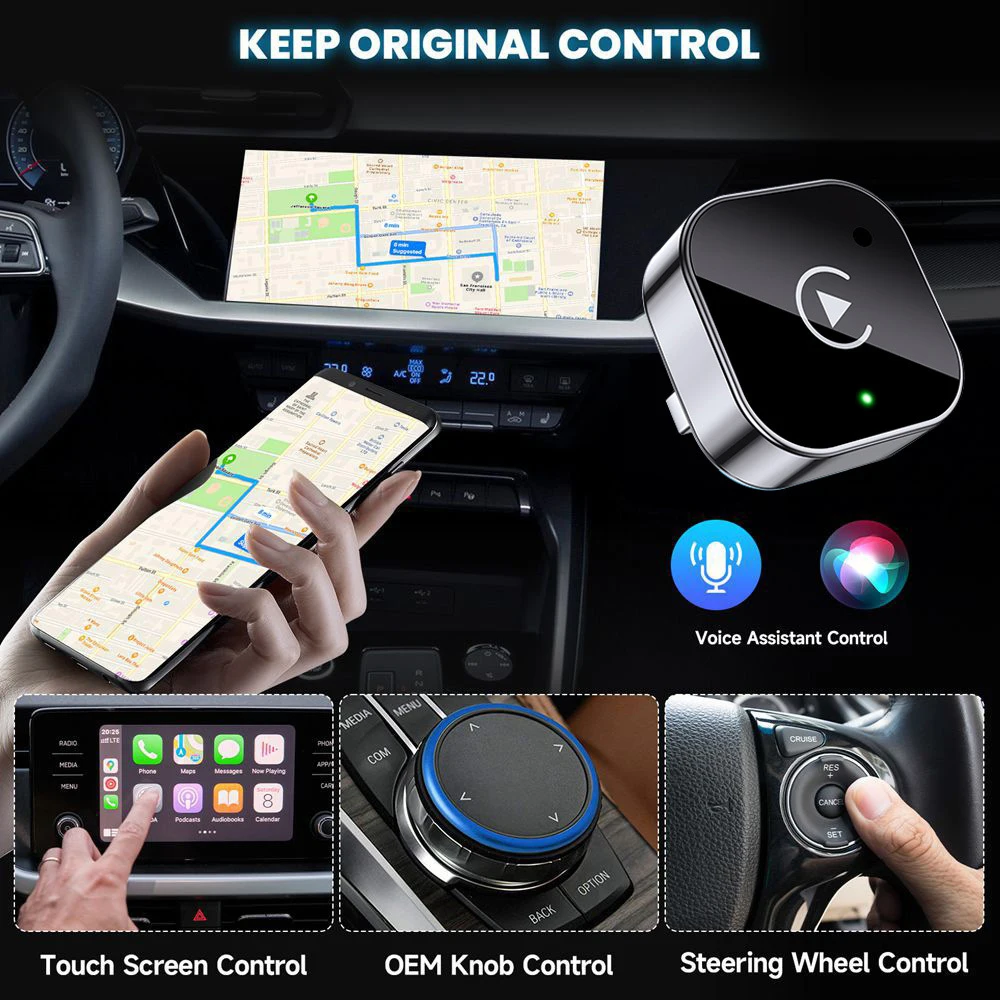
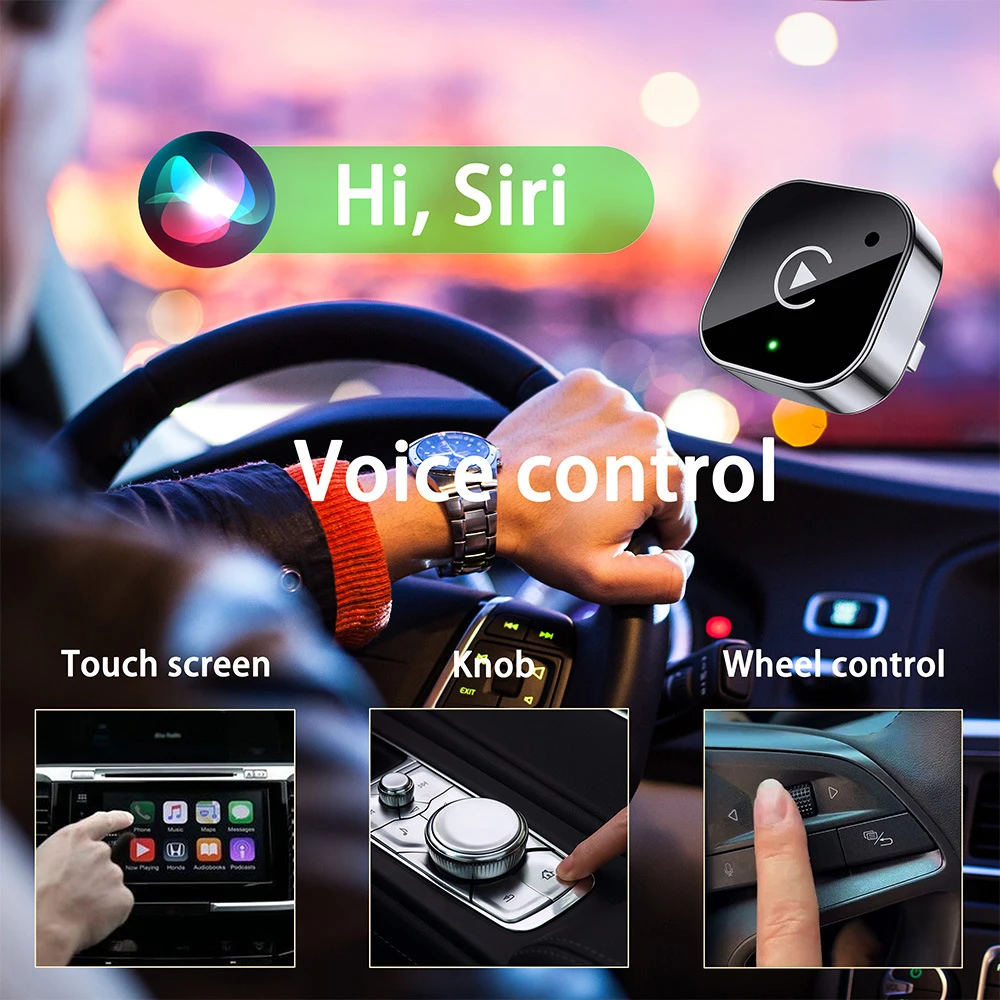
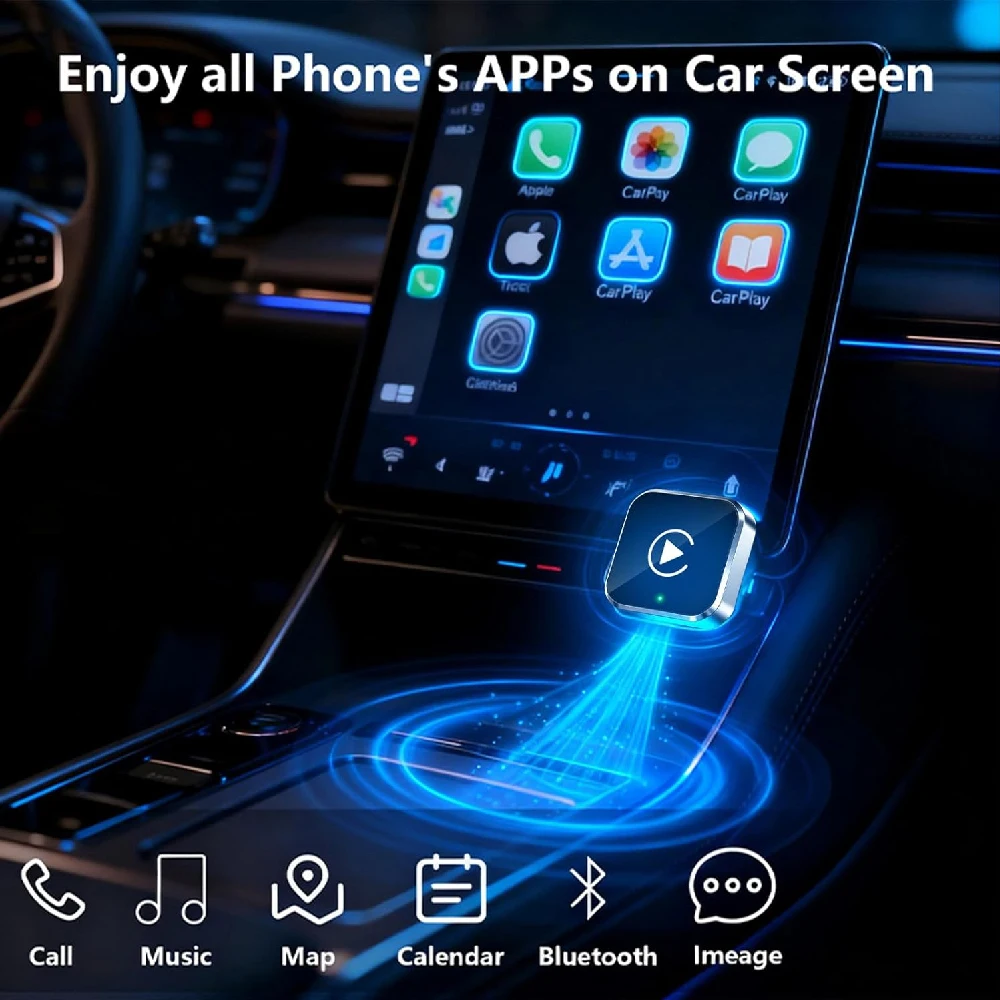
- You may now operate all CarPlay and Android Auto features directly through your vehicle’s built in screen.
Concurrent Phone Usage
- You can continue using your phone normally while connected to the adapter. For example, navigation directions set on your phone’s Maps app will automatically sync and display on your car’s screen.
LED Status Indicator Guide:
Status Mode - LED Light Behavior
Standby Mode - Solid Blue Light
Pairing Mode - Flashing Blue Light
Successfully - Connected Solid Green Light
Continued information available on the reverse side of the manual