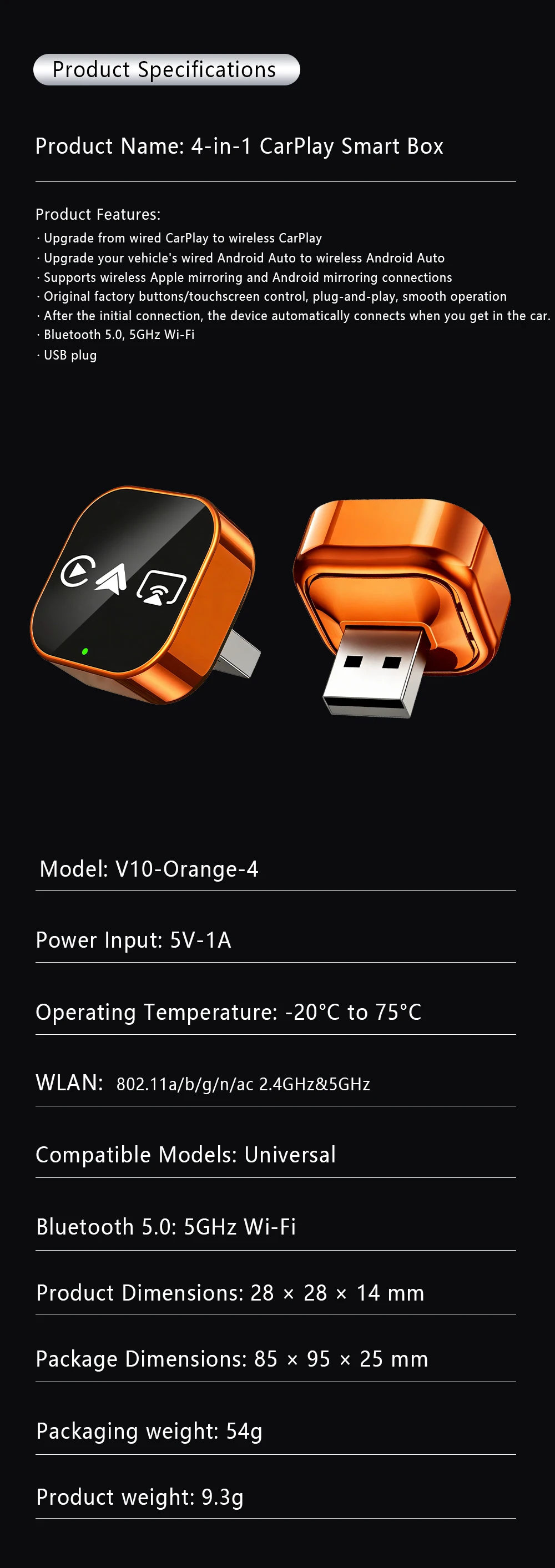
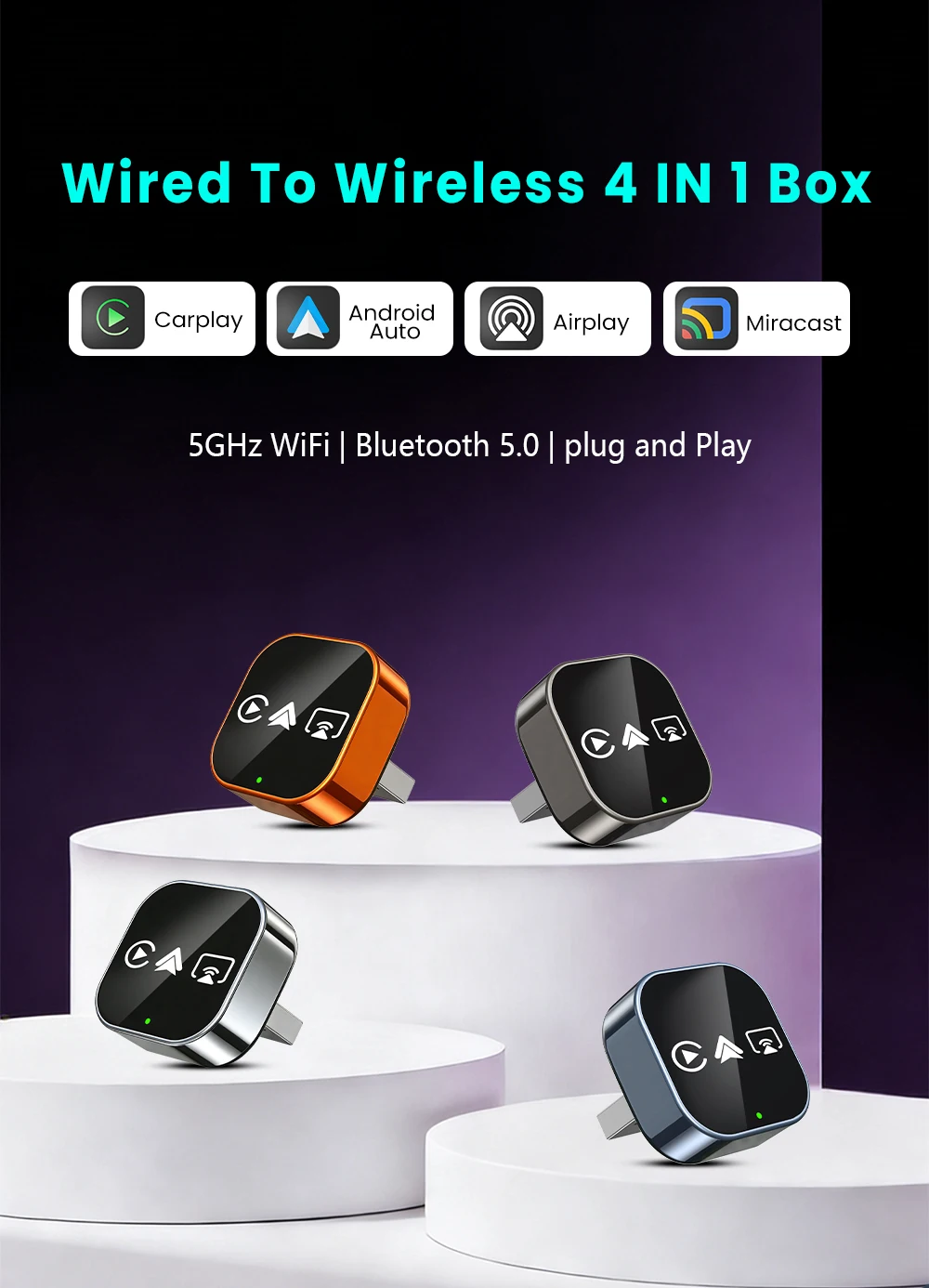
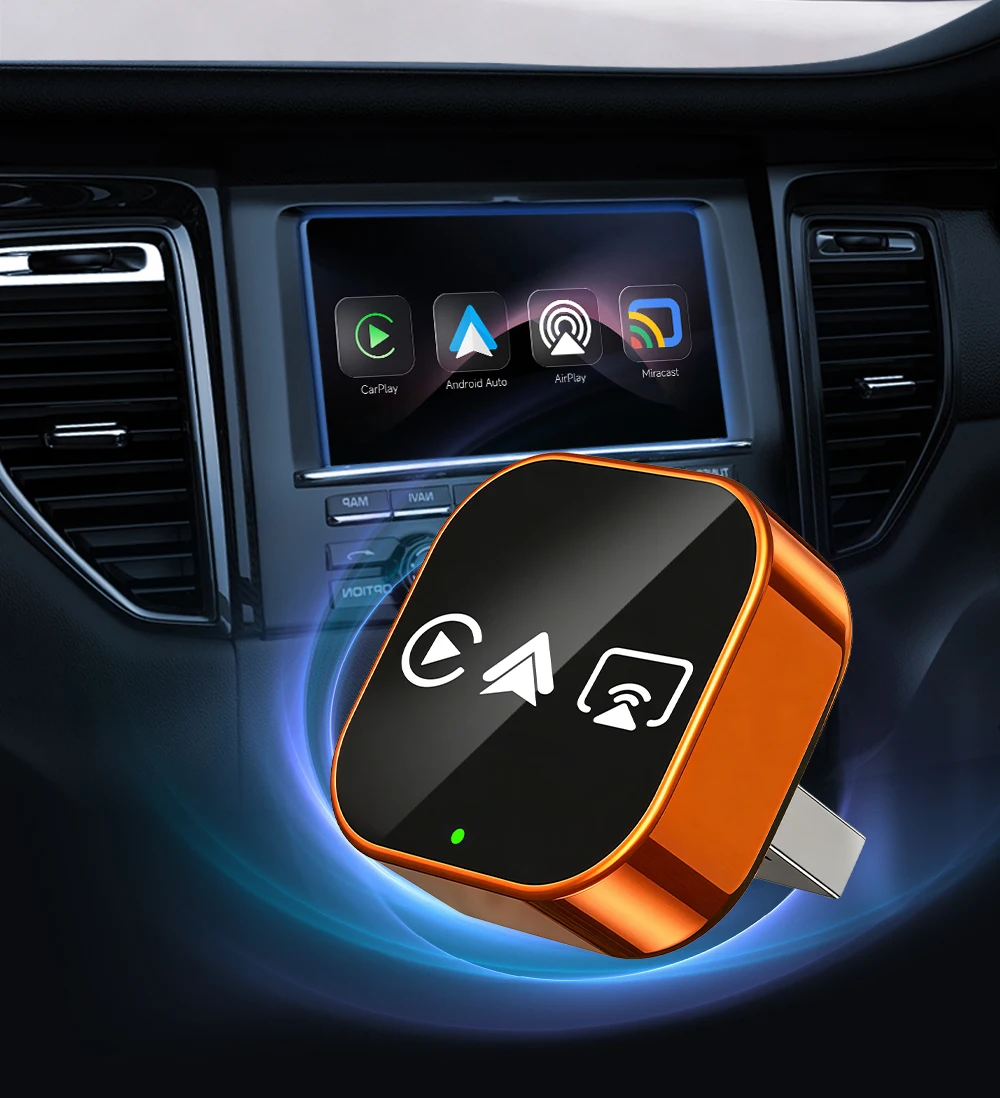
PLAYAIBOX Upgrade 4 In1 Wired to Wireless CarPlay Android Auto AirPlay Mirror Link Stable Bluetooth Adapter For Audi Benz Toyota


PLAYAIBOX Upgrade 4 In1 Wired to Wireless CarPlay Android Auto AirPlay Mirror Link Stable Bluetooth Adapter For Audi Benz Toyota
SPECIFICATIONS
Bluetooth: 5.0
Brand Name: NONE
Choice: yes
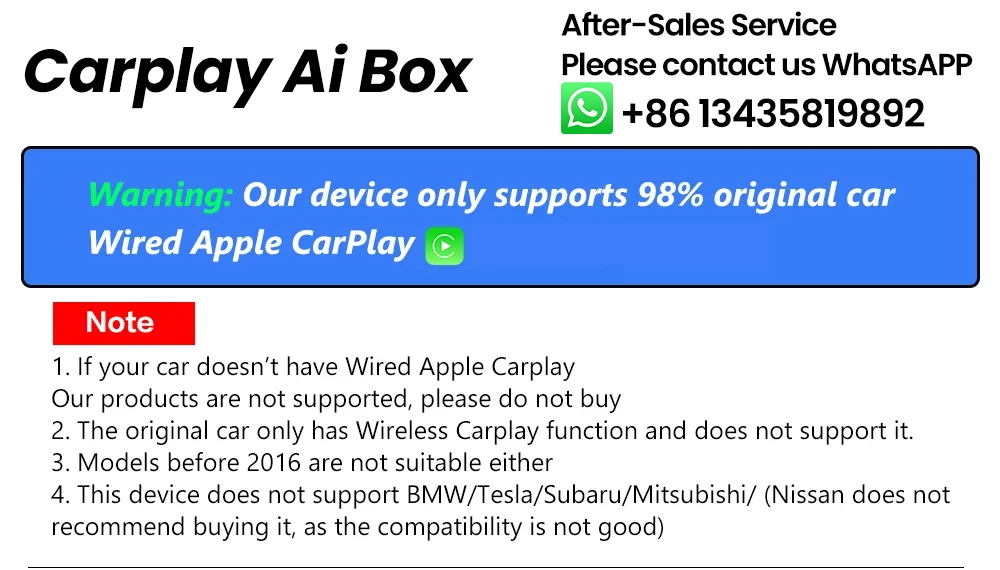
Conditions of Use: Only Support Original Car With Wired Carplay
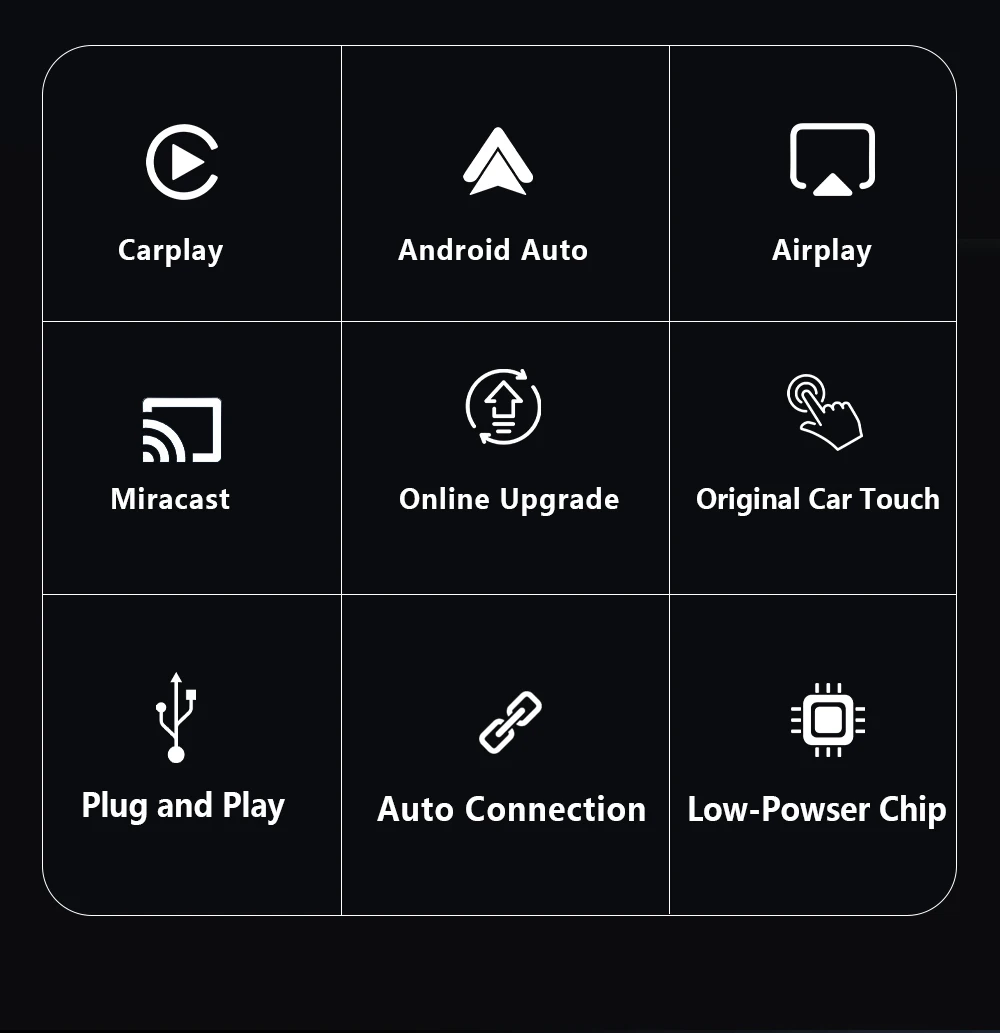
Feature: Wireless Carplay
Feature1: Wireless Android Auto
Feature2: OTA Update
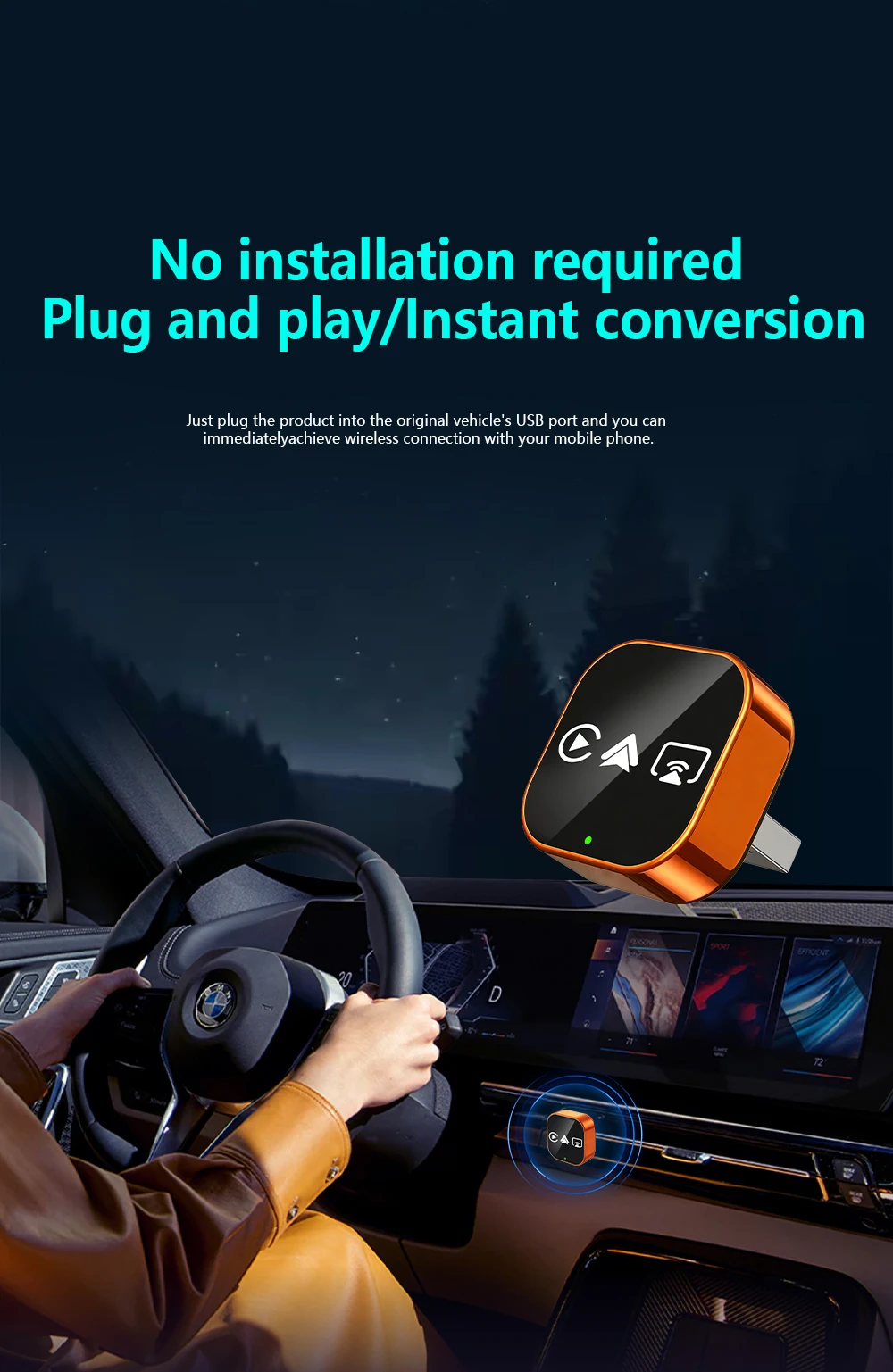
Feature3: Plug and play
Feature4: Carplay adapter
Feature5: Android auto adapter
Feature6: Airplay
Feature7: Miracast
Feature8: Smart Screen Mirroring
High-concerned chemical: None
Origin: Mainland China
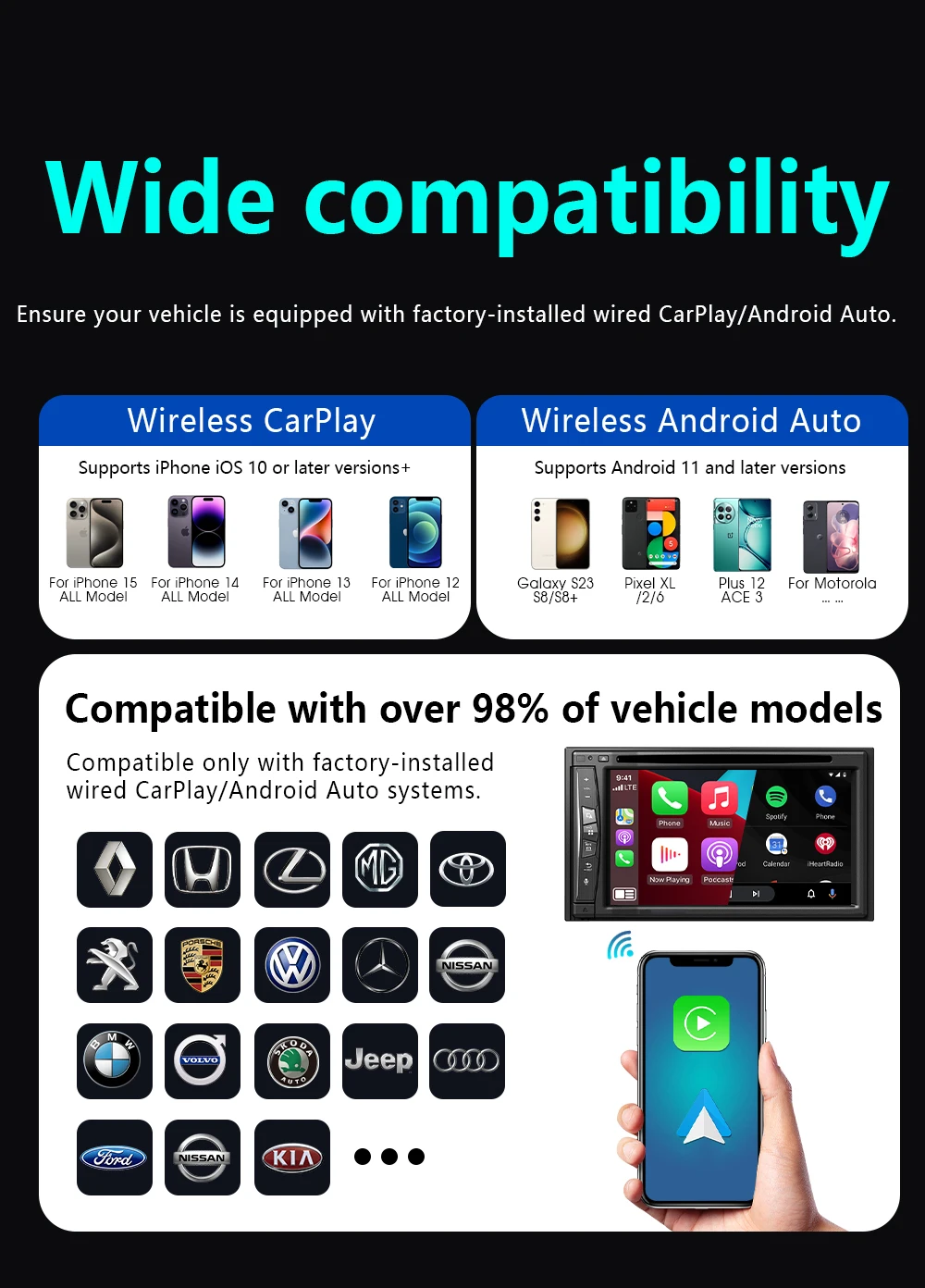
Support the Car: For Audi Benz Volvo VW Toyota Skoda Seat Nissan Mazda Lexus Kia Jeep Jaguar Hyundai,For Honda Haval GMC Ford Chevrolet Citroen Buick Cadillac Chery MG
Wifi: 2.4G+5G
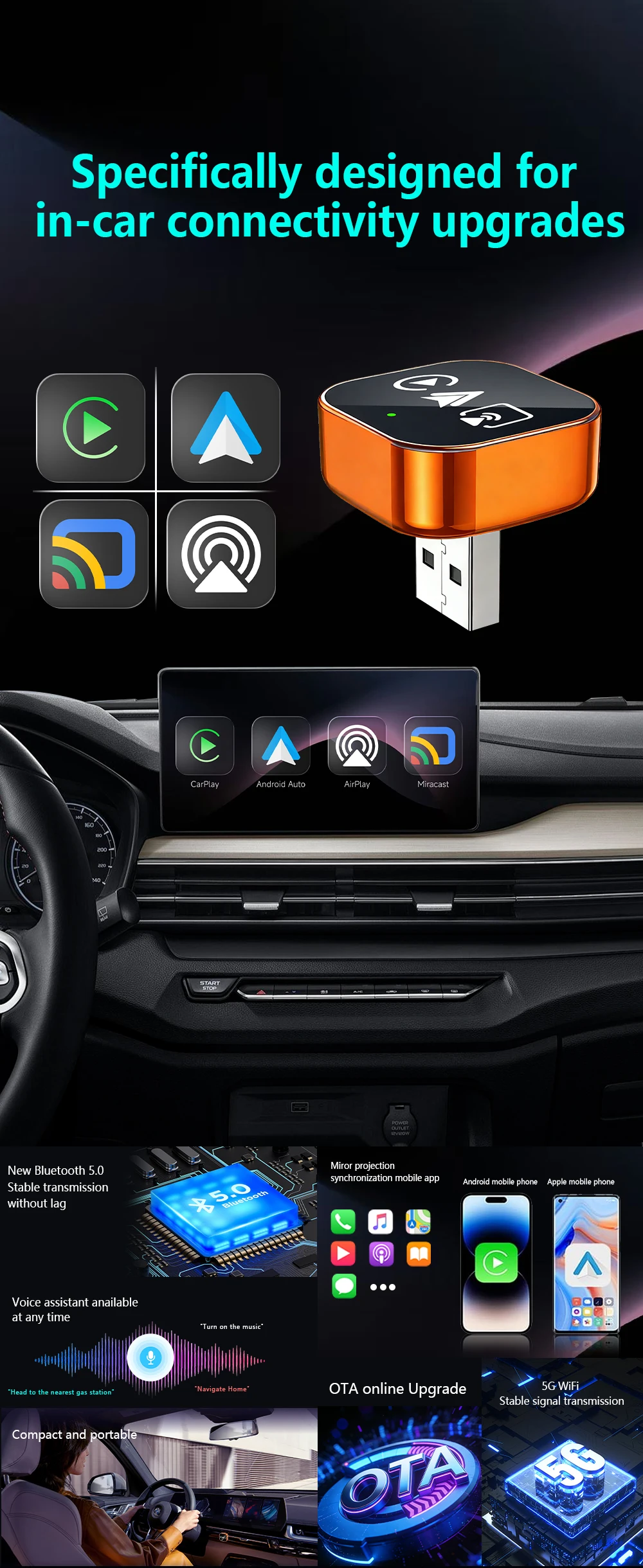
The product features four functions: Airplay, Mirror Link, Wireless CarPlay, and Wireless Android Auto. Each function has specific compatibility requirements that must be checked in detail.
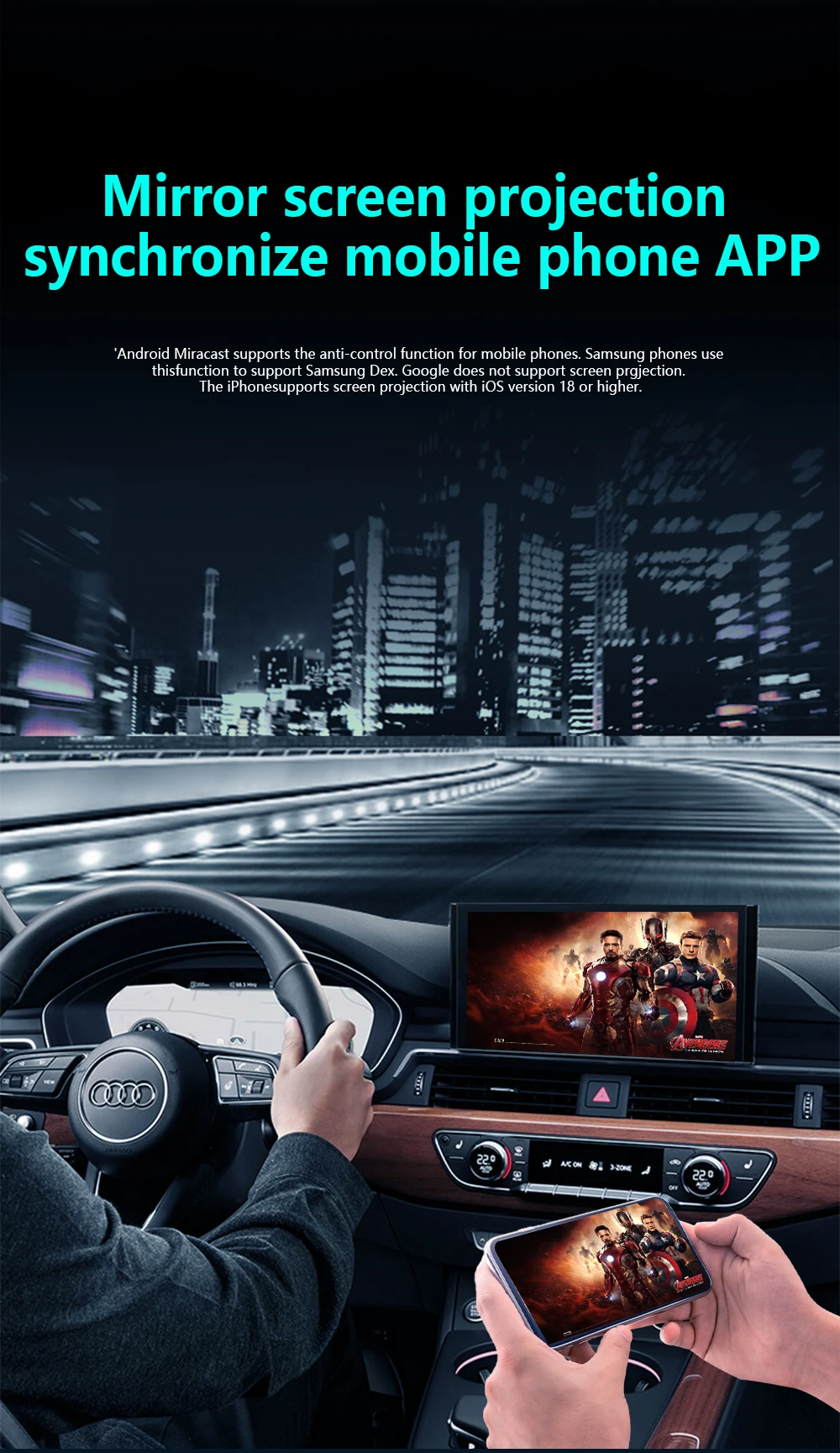
Airplay is designed for iOS phones, requiring iOS system 18.0 or above (not compatible with Android phones).
Mirror Link is not compatible with Google and iOS phones; however, it supports other Android phones. Note that Xiaomi phones cannot control each other, but other Android devices can.
Before placing an order, please contact customer service to confirm compatibility with your car model, as it may not be applicable to some models.
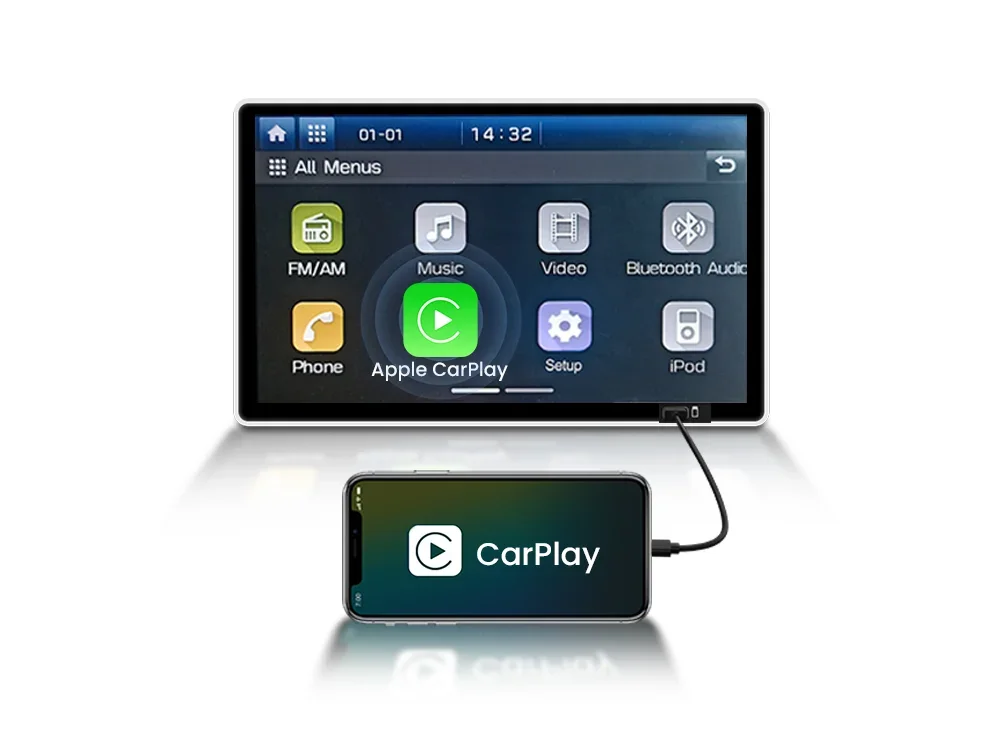
Wired CarPlay to Wireless CarPlay requires your vehicle to have Wired CarPlay and an original navigation system. Third-party installations of CarPlay are not accepted. It supports iPhones with iOS 10.0 or above (not compatible with Android phones) and is suitable for 98% of original cars with wired CarPlay.
Wired CarPlay to Wireless Android Auto also requires your vehicle to have Wired CarPlay (Wired Android Auto is not supported) and an original navigation system. Third-party installations of CarPlay are not accepted. It supports Android phones with version 11.0 and above and also supports wireless Android Auto (not compatible with iOS phones). This is suitable for 98% of original cars with wired CarPlay.
Note: Only one of the four options can be selected for use, and Carplay and Airplay functions cannot be used simultaneously
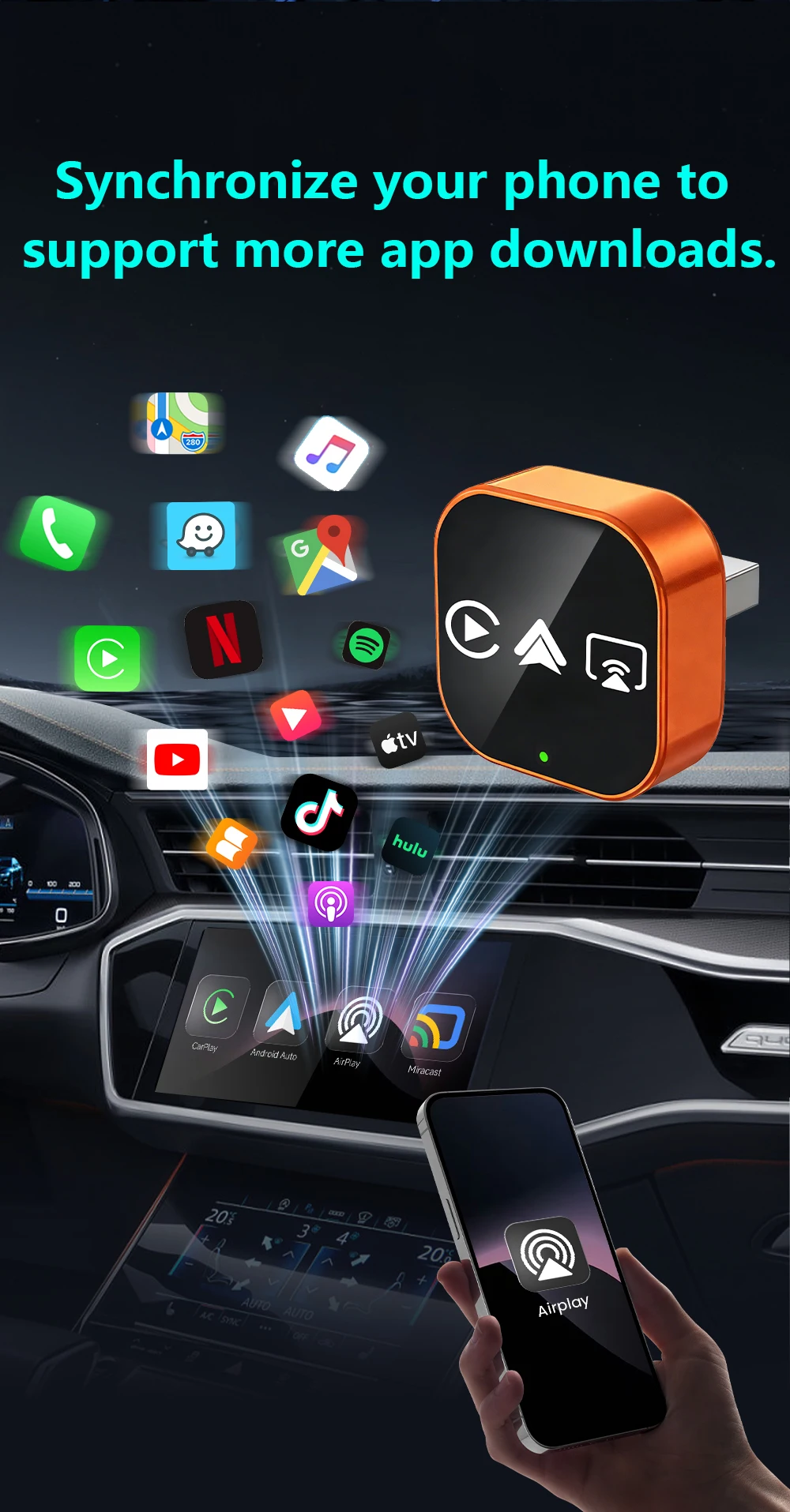
Airplay projection screen
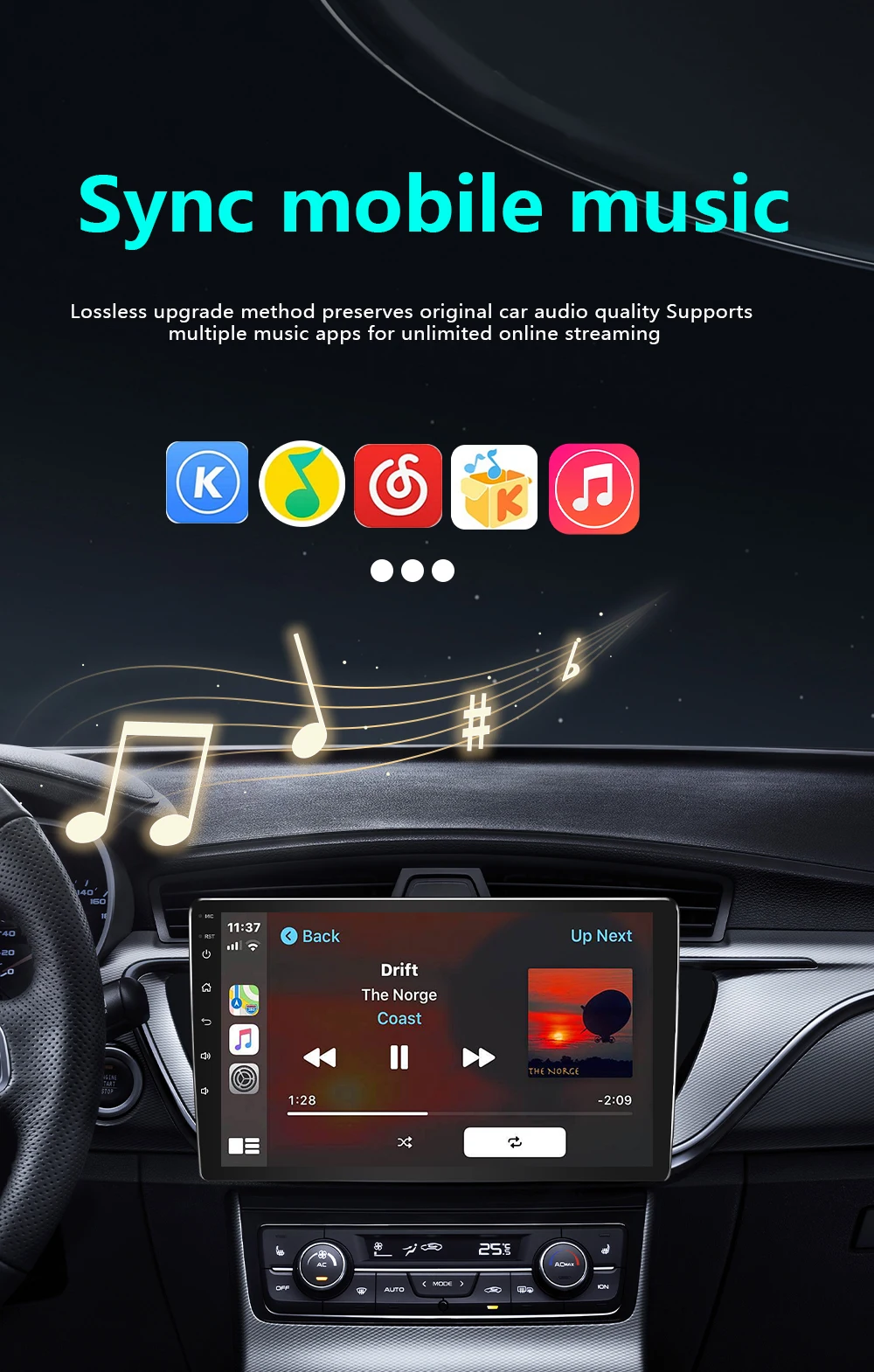
Sync mobile APP
IPhone image projection screen, mobile phone system iOS. 18 and later
Miracast projection screen
Sync mobile APP
Android image projection screen, mobile version needs to be Android 11 or above
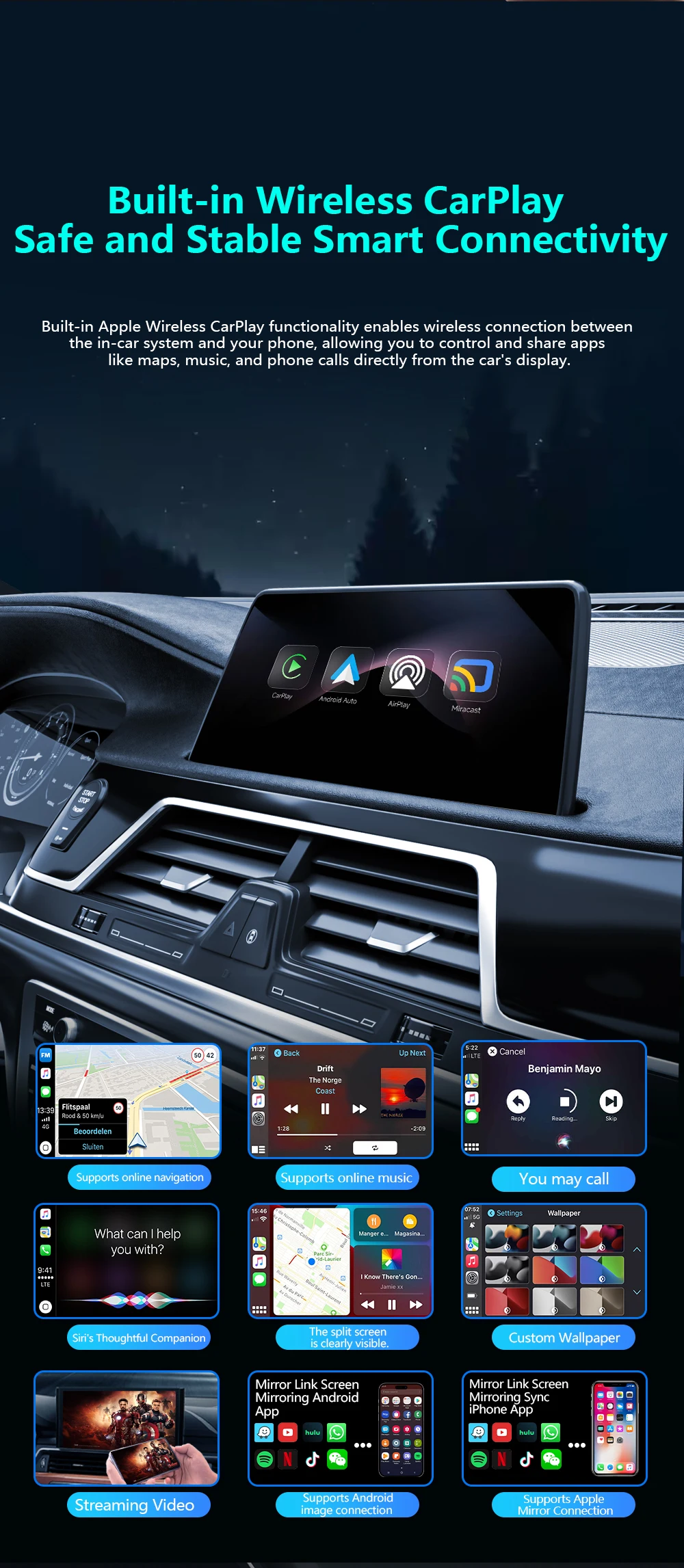
Airplay/Miracast Enabled: Allows wireless streaming of music, videos, and more from phone devices directly to your car’s display.
(Attention: We are unable to screen copyrighted apps, and some copyrighted videos cannot be played. We apologize for any inconvenience caused)
How to connect Mirror link?
1:Turn on WiFl on your phone
2: Click on wireless screen mirroring
3: Find the wireless screen projection entrance onyour phone(usually available in the drop-down menufunction list)or search for itin the settings
4: Find the device name of the box in the wirelessscreen casting list.
5: Click on the device nome to connect and casthe screen for use.
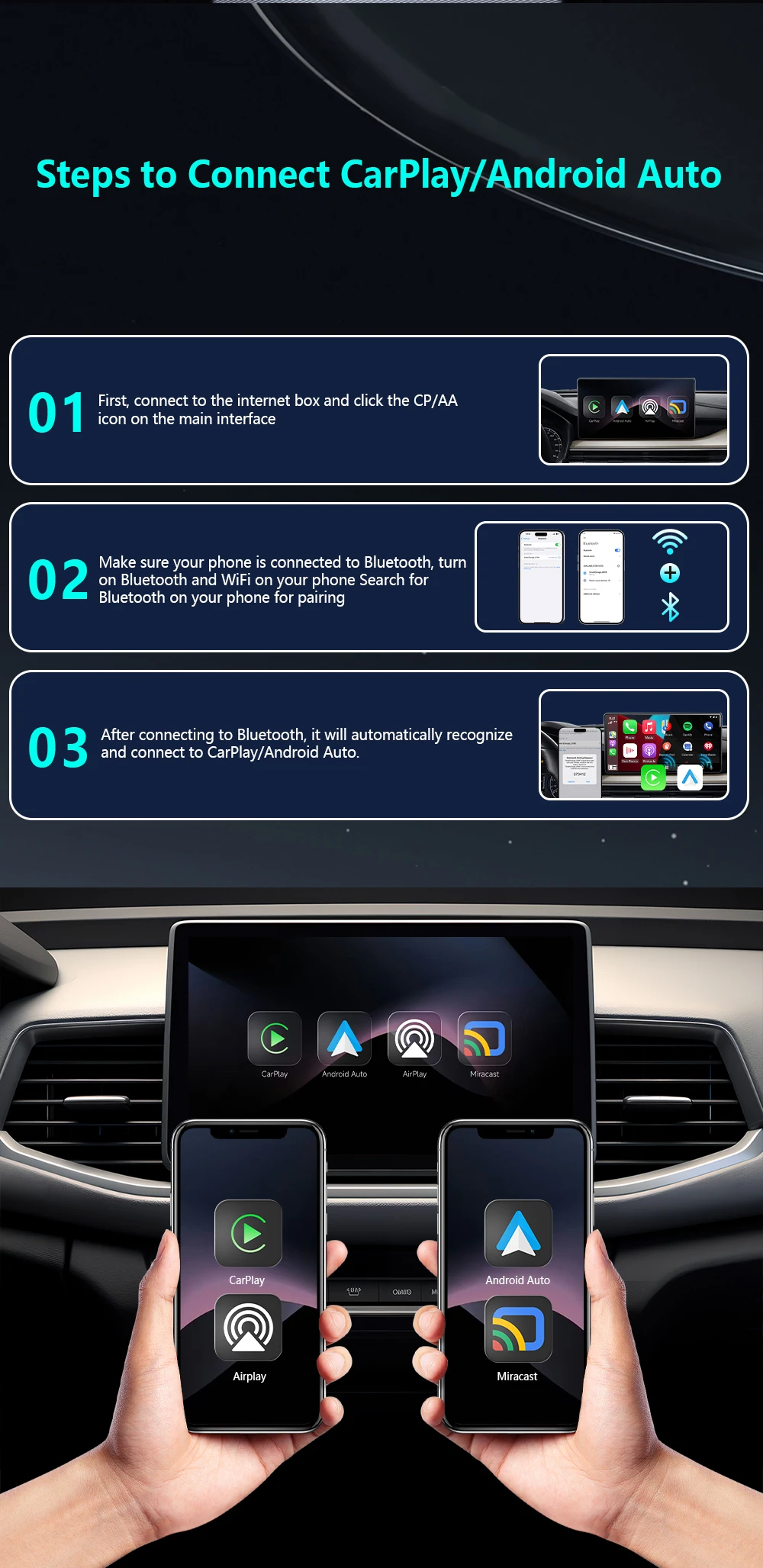
How to use wireless Carplay/Android Auto?
Step 1: Plug the adapter into your car’s wired CarPlay USB port.
Step 2: On the adapter’s interface, click the [CP/AA] icon.
Step 3: Turn on Bluetooth + WiFi on your phone.
Step 4: Search for the adapter’s Bluetooth name (e.g., “SmartBox-xxxx”) and pair.
Step 5: Auto-recognizes and connects to CarPlay/Android Auto – done!
OTA Upgrade
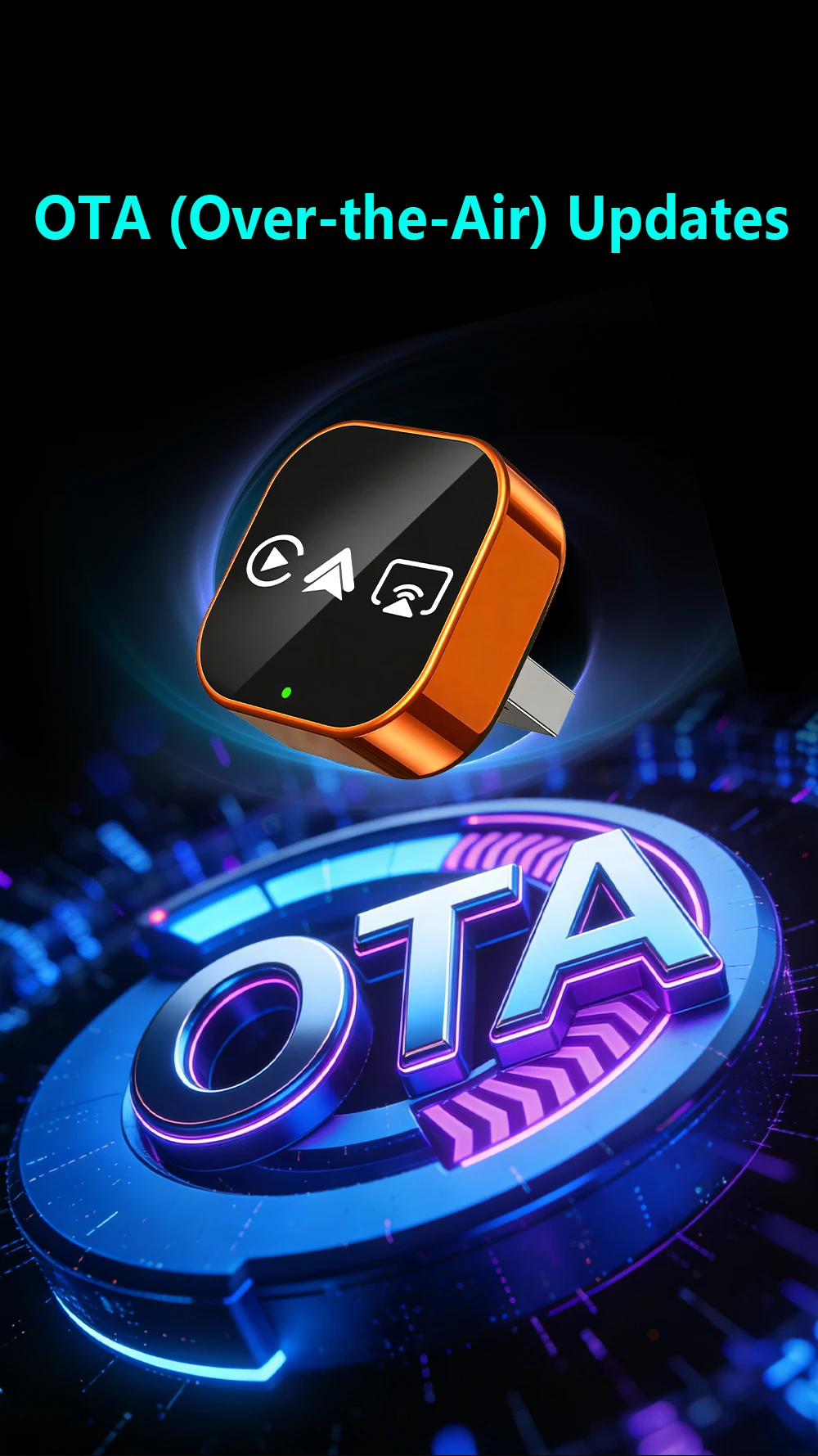
Need to upgrade OTA in case of connection failureor disconnection.
1: Turn on your phone's WiFi.
2:Connect to WIF, name:"SmartBox-xxx"Password:12345678"
3:Open the mobile browser.
4: Enter the website address'192,168.1.101'
5: Enter the OTA upgrade interface.
6: Pull down the upgrade interface, click "Update'and afterloading the box, the upgrade is complete.